

Bots
Bots in better-vault are helpers with animated faces that read your notebooks, notes and calendar, ask before they change anything and hand tasks to each other.
Bots are helpers with a name, a role and an animated face, and each one keeps a single ongoing chat with you.
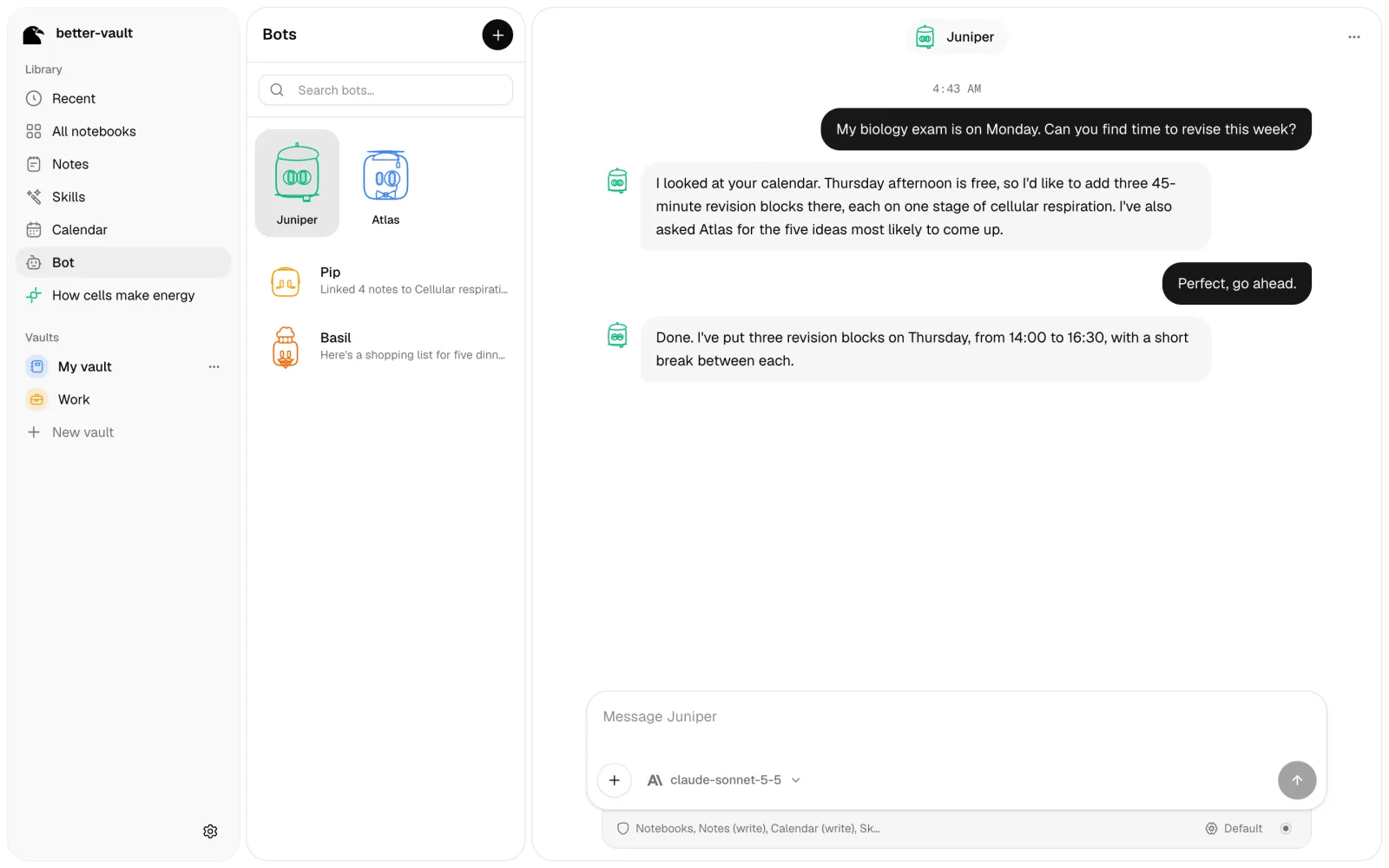
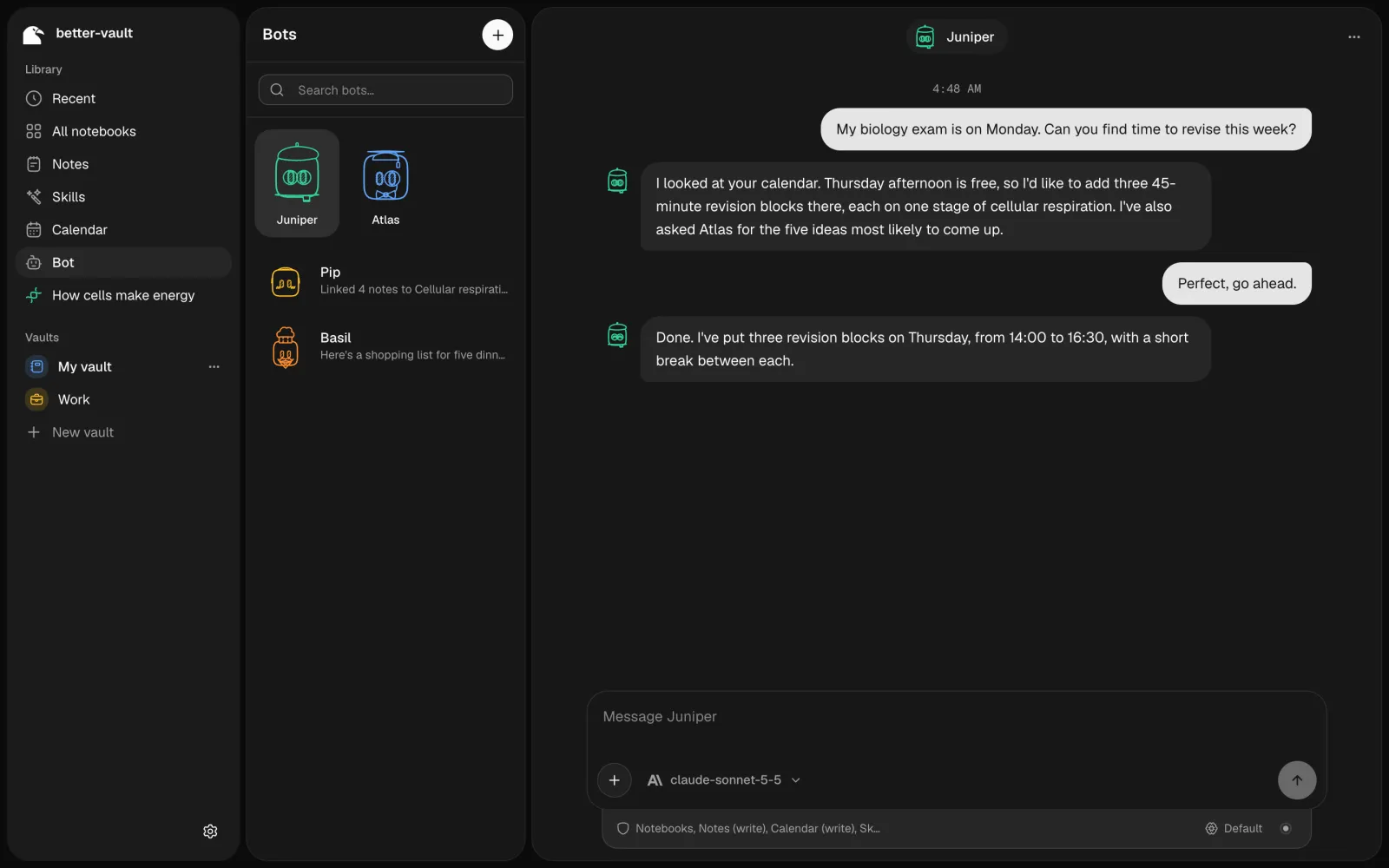
Open Bot in the sidebar of the notebooks page, under Calendar. The card on the left lists your bots, with pinned ones as large tiles at the top, and the chat of the bot you choose opens in the card beside it.
The bot character
Every bot is the same character, drawn as fine line art in the bot's colour: a rounded, cube-like head with two hatched pill eyes. It turns toward your pointer as you move it, blinks, and glances around when it is idle. Its face shows what it is doing: it looks up and sways while it thinks, nods while it waits for your OK, and hops when it is done.
Each bot dresses the character its own way, with one item for its head, one for its face and one at its neck.
| Slot | Items |
|---|---|
| Headwear | Wizard hat, top hat, beanie, beret, crown, chef's hat, graduation cap, headphones, antenna |
| Face | Round glasses, square glasses, sunglasses, monocle, mustache, blush |
| Neck | Bow tie, tie, scarf |
If your system is set to reduce motion, the character holds still and only its eyes follow the pointer.
What bots can do
A bot works with your own material. It can list your notebooks and search their sources, read your notes and skills, and look at your calendar, all on your device. Bots use the model you choose in their prompt bar, with the keys you entered in AI providers.
A bot never changes anything without asking. When it wants to create a note, add to one, put an event in your calendar or make a new bot, the chat shows a Needs your OK card with what it is about to do. Press Do it to make the change, or Not now to tell the bot no. While a bot works, its face thinks beside a bubble of pulsing dots.
| Area | Without asking | After your OK |
|---|---|---|
| Notebooks and sources | List and search them, read a source | |
| Notes | List, search and read them | Create a note, add to a note |
| Calendar | See what is planned | Add an event |
| Skills | List and read them, look on GitHub | Add skills, write a skill |
| Other bots | Hand them a task | Make a new bot |
Local models from Ollama or LM Studio can't use these tools, so with one of them a bot can chat but can't see your vault.
Choose what a bot can access
Each bot has its own access, set in the Access tab of Edit bot (the menu at the top right of its chat). Turn notebooks on or off, and set notes, the calendar and skills to Off, Read or Read & write. Write access still asks for your OK before each change.
Vault limits a bot to one vault, so it only sees that vault's notebooks, notes and skills. A bot asked about something it can't access says so, and points you to this tab.
Add skills with a bot
A bot with skills set to Read & write can add skills for you. Give it an npx skills add … command from skills.sh, a skills.sh link or a GitHub link, and it looks up the skills there and asks for your OK before adding them to your Skills page. It can also write a new skill from what you describe.
Hand tasks to other bots
A bot that may delegate can pass a task to another bot and wait for its answer. The task appears in the other bot's own chat, marked with who asked, so you can follow the work there. If that bot needs your OK for a change, its card waits in its own chat.
The Chief of Staff bot does this by default: tell it what you need, and it asks the right bot for each part and sums up what they did. A bot that was handed a task can't hand it on, so bots never pass work around in circles.
A bot with Can make new bots turned on can also make a bot for you: ask Chief of Staff for "a bot that summarizes my vault when I ask", and it proposes one with a name, a face and only the access the job needs. The new bot joins the roster once you approve it.
Make your own bot
Press + at the top of the roster to make a bot.
Name it
Give the bot a name and a short role, such as "Keeps my reading list". The role helps a coordinating bot decide when to ask it.
Give it a look
Choose a colour and what it wears: a hat, glasses or a mustache, a bow tie. The preview follows your pointer, the way the bot will in its chat.
Tell it how to work
Write its instructions: what it should care about and how it should answer, and turn on Pin to the top to show it as a large tile.
Set its access
In the Access tab, choose what it can read and change, and whether it can hand tasks to other bots or make new ones.
The four starter bots, Chief of Staff, Researcher, Note Taker and Planner, can be changed or deleted like any other. The menu at the top right of a chat edits the bot, clears its history or deletes it.
Where bots are kept
Bots and their chats are stored with the rest of your data, in the browser on the web and in the desktop app's database, and they are included in backups.
Notes, links and graph
Write linked Markdown notes in better-vault: connect notes, notebooks and sources with [[double brackets]], see backlinks, browse the graph and use a canvas.
Skills and MCP for AI agents
Keep shared SKILL.md skills in a vault and let agents like Claude Code, Cursor and Codex use your notebooks, notes, calendar and much more through MCP.