

Plugins
Add Studio tools, panels, mods and themes to better-vault with plugins: find them in the directory, see what each one may use, and uninstall at any time.
A plugin adds something to better-vault: a Studio tool of its own, a smaller panel, a mod that reshapes the whole app, or a colour theme.
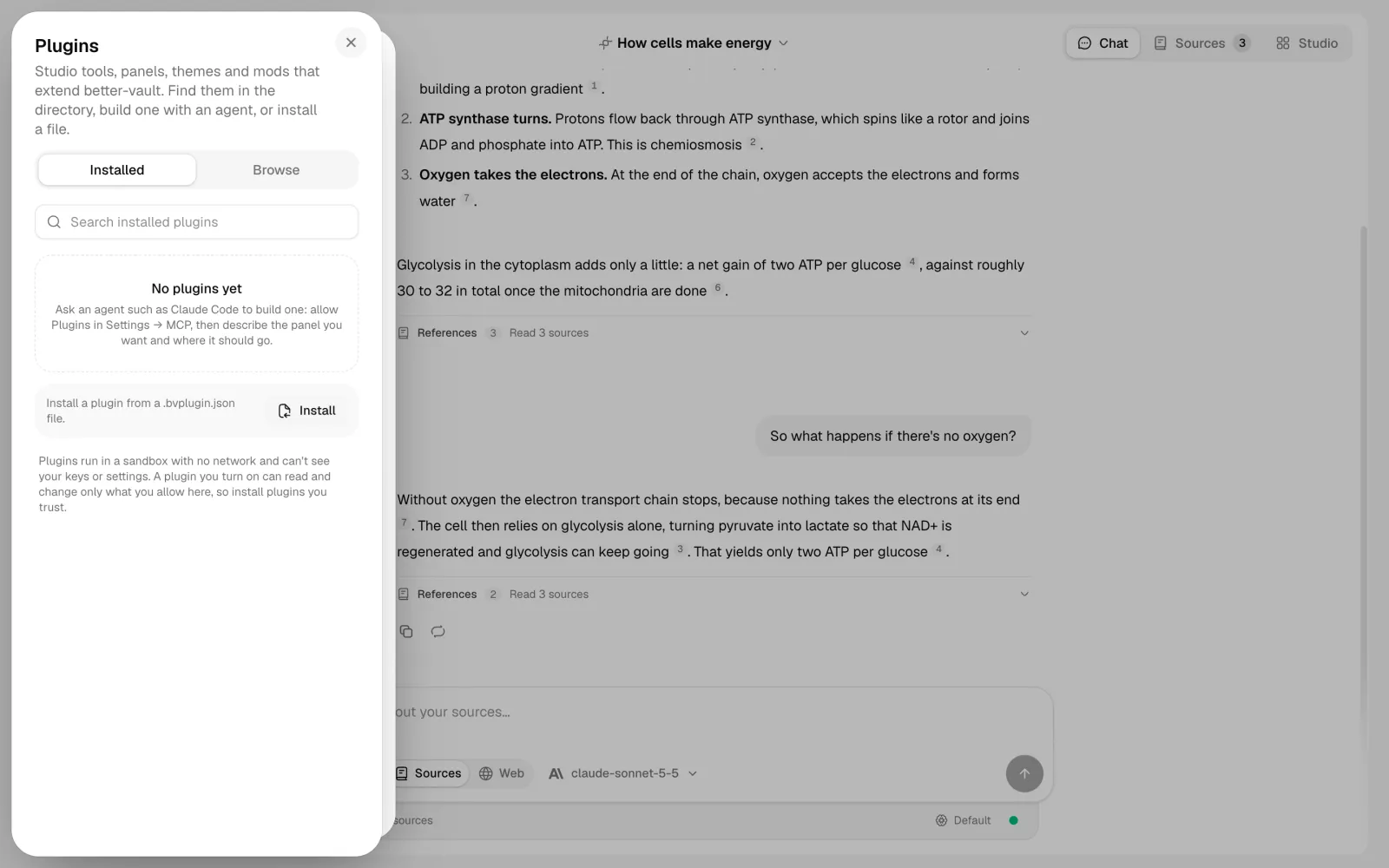
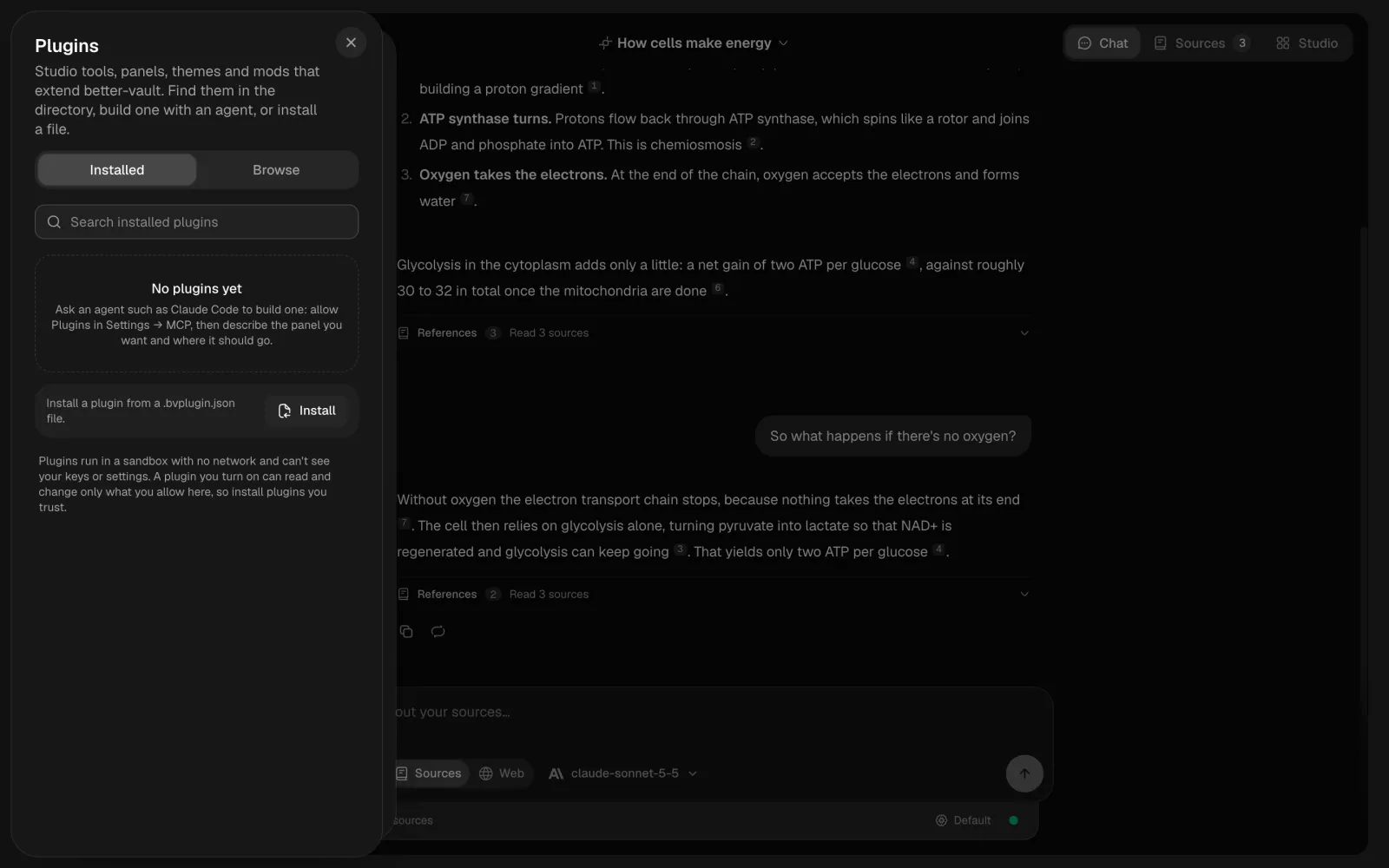
Install a plugin
Find it
Open Settings → Plugins and choose Browse. The directory lists every plugin that was reviewed and merged into better-vault-plugins; search it by name, author or tag. You can also browse it on better-vault.dev/plugins.
Read the details
Choose a plugin to open its dialog. It says what the plugin adds and what it asks to read or change, under a warning that it is a third-party plugin. Choose Install… when you are ready.
Confirm
The confirm step shows the warning and the permissions again. Untick anything you don't want to give it, decide whether to turn it on now, and choose Install.
To install a plugin someone sent you as a file, choose Install in the Installed tab and pick its .bvplugin.json file. It goes through the same dialog, marked as unverified. An AI agent can also build one for you; Creator mode explains how.
Turn it off or uninstall it
Choose an installed plugin to open its dialog again. The switch turns it on or off; Uninstall removes it with everything it saved. Its Studio tools, panels, mods and theme go at once, and the app looks and works as it did before.
What a plugin can use
| Permission | Lets the plugin |
|---|---|
| Read your notebooks | List your notebooks and how many sources each has |
| Read notebooks' sources | List a notebook's sources and read their text |
| Read your notes | List your notes and read them |
| Read your skills | Read your skills and their instructions |
| Read your calendar | List your events between two days |
| Create notes | Create notes in the current vault |
| Add calendar events | Add events to your calendar |
| Use your AI model | Ask the model you chose, with your key, which it never sees |
A plugin never sees your settings or API keys, whatever it asks for. Every plugin can also keep a little data of its own, such as scores or preferences, on your device.
How plugins are kept safe
A plugin's pages run in a sandbox. They can't reach any server, so they can't load scripts or pictures from the internet or send your data anywhere, and they can't read the app's storage or other pages. The only way a page gets your data is by asking better-vault, which answers only what you allowed. If a page tries to leave, better-vault stops it.
A mod is CSS only. It is checked before it installs and again before it is applied: it may not import anything or load anything but data: pictures and fonts, and the app's Content-Security-Policy blocks other hosts as well. A theme can only set the app's colour tokens to plain colours.
When a plugin is updated and asks for more than before, it turns off until you look at it again. Plugins in a backup, or synced from another device, also arrive turned off.
Sync
With a Pro or Max plan, your plugins sync to your other devices along with your skills. Subscription explains how sync works.
Build your own
Build your first plugin walks through a Studio tool from an empty folder to the directory.
Skills and MCP for AI agents
Keep shared SKILL.md skills in a vault and let agents like Claude Code, Cursor and Codex use your notebooks, notes, calendar and much more through MCP.
Build your first plugin
Build a better-vault Studio tool from an empty folder: write its manifest and page, try it in the app from a file, then submit it to the plugin directory.